

WordPress has been able to schedule a post to go live in the future for as long as I can remember. Pick a date, hit Schedule, go and make a cup of tea. What it has never been able to do is the opposite – schedule a post to come back down. Which is odd, because in agency work that’s one of the most common requests there is.
Why you’d want it
Think about how much content on a client site has a shelf life:
- A promotion or sale that ends at midnight on Sunday.
- A job posting with a closing date.
- An event page that’s pointless the day after the event.
- A seasonal page – Christmas opening hours, summer menu, that sort of thing.
- A “we’re closed for the bank holiday” notice that nobody remembers to take down until a customer complains in March.
Without something like this, the plan is “someone will remember to unpublish it.” Someone never remembers. The sale page stays up for three weeks after the sale ended, a customer tries to claim the discount, and suddenly it’s an email thread with the client’s MD copied in. There are plugins for this, of course, but it’s one small job, and as I’ve said before – I’d rather write the function than add another row to the plugins table.
What it does
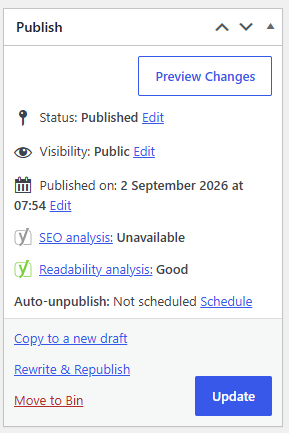
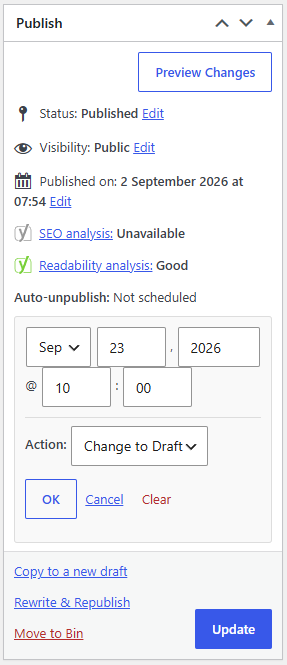
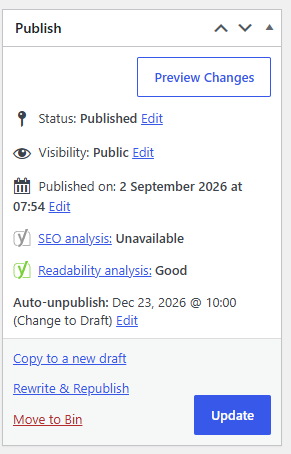
It adds an “Auto-unpublish” control to the Publish box in the post editor, directly under the normal Publish/Schedule date. It uses the same collapsible date picker WordPress itself uses there – month, day, year, hour, minute, OK/Cancel – so editors don’t have to learn anything new. Alongside the date you choose what should happen when it’s reached:
- Change to Draft – comes down, stays editable, easy to republish next year.
- Make Private – hidden from the public, still visible to logged-in editors.
- Move to Trash – for things that genuinely aren’t coming back.
On the post list screens there’s a sortable “Auto-Unpublish” column, so you can see at a glance what’s due to come down and when (anything past its date shows in red as Overdue), and a “Clear Auto-Unpublish” bulk action for cancelling the schedule on a batch of posts at once.
How it works
Saving a date schedules a single wp-cron event with wp_schedule_single_event(). That’s the same mechanism WordPress core uses to publish scheduled posts, just pointed the other way. The date you enter is converted to GMT with get_gmt_from_date(), exactly as core does for future posts, so the event fires at the right moment regardless of what timezone the server itself runs in. Editing or clearing the date always removes the old event first, so you never end up with a stale one lurking in the cron queue.
The wp-cron problem
Here’s the catch with “the same mechanism core uses”: wp-cron isn’t a real cron. There’s no background timer. It only runs when someone visits the site, and even then it fires off a separate request in the background, which some hosts block, and some sites have DISABLE_WP_CRON set without a real server cron job to replace it. On a quiet site, “unpublish at 9am” can quietly become “unpublish whenever someone next happens to visit.” It’s the same reason you occasionally see WordPress’s own “Missed schedule” on a post.
So there’s a backup. On any page load – front end or admin, at most once a minute (a one-minute transient stops it hammering the database) – it looks for published posts whose unpublish date has already passed and deals with them there and then. Both routes go through the same function, which deletes the schedule once it’s run, so a post can never be unpublished twice. If wp-cron does its job, the backup finds nothing. If it doesn’t, the backup catches it on the next visit.
The timezone gotcha (or: WordPress being WordPress)
This one caught me out while testing, so it gets its own section.
I set a post to unpublish at 12:18. At 12:20 it was still live. At 12:25, still live. Cue a fun half hour checking wp-cron, the backup, file uploads and caches, only to find the code was working perfectly. The site just thought it was 11:25.
WordPress has exactly one timezone for the entire site, set in Settings → General. There’s no per-user timezone and nothing picks up your browser’s. Every date in the admin – publish dates, scheduled posts, and this unpublish date – is read in the site’s timezone. The trap is that the Timezone dropdown offers fixed offsets like “UTC+0” right next to real cities, and a fixed offset doesn’t know about daylight saving. So a UK site set to UTC+0 is spot on in winter and an hour behind all summer. My 12:18 was being read as 12:18 site time, which was 13:18 in the real world.
The fix takes ten seconds: set the timezone to a city (London, in my case) instead of a UTC offset. WordPress then handles summer and winter time itself and you never have to think about it again. It’s worth checking on every site you look after anyway, because the same hour has been silently shifting the client’s normal scheduled posts too – they just never noticed because nobody schedules those to the minute.
Could the function work around it by reading the editor’s browser timezone instead? Technically, yes. But then the unpublish date would disagree with WordPress’s own publish date sitting right above it in the same box – the same “12:00” meaning two different times depending on which field you’re looking at. That’s worse than the problem it solves. So: it uses the site timezone, like everything else in WordPress, and the site timezone needs to be set properly. WordPress being WordPress.
One more limitation
The control lives in the Classic Editor’s Publish box, which the block editor doesn’t have. If a client is on Gutenberg, this needs a block editor sidebar panel instead – that’s a job for another day.
Get the code
It’s open source and completely free to use – on your own sites, on client sites, wherever it’s useful. You can download it, along with the rest of my WordPress functions, from GitHub: github.com/obviousdisaster/My-WordPress-Functions. Drop the file into your theme, include it from functions.php, and you’re done.
One file, no settings page, no plugin, and no more sale pages hanging around three weeks after the sale. Just remember to check the timezone.
Comments (0)