
Chrome Extension
My Chrome Home
Every time you open a new tab in Chrome, you’re handed the same thing: a search bar, a row of frequently visited sites, and a lot of empty space. It’s functional, but it’s not exactly inspiring. I wanted something more – a proper dashboard that I’d actually want to look at. So I built one.
My Chrome Home, a Chrome extension that replaces the default new tab page with a fully personalised dashboard. No subscriptions, no accounts, no bloat – just a clean, fast page that loads your weather, your bookmarks, your notes, and a stunning photo every single day.
If you’re really bored, you can click here to see more details behind the development.
What Does It Look Like?
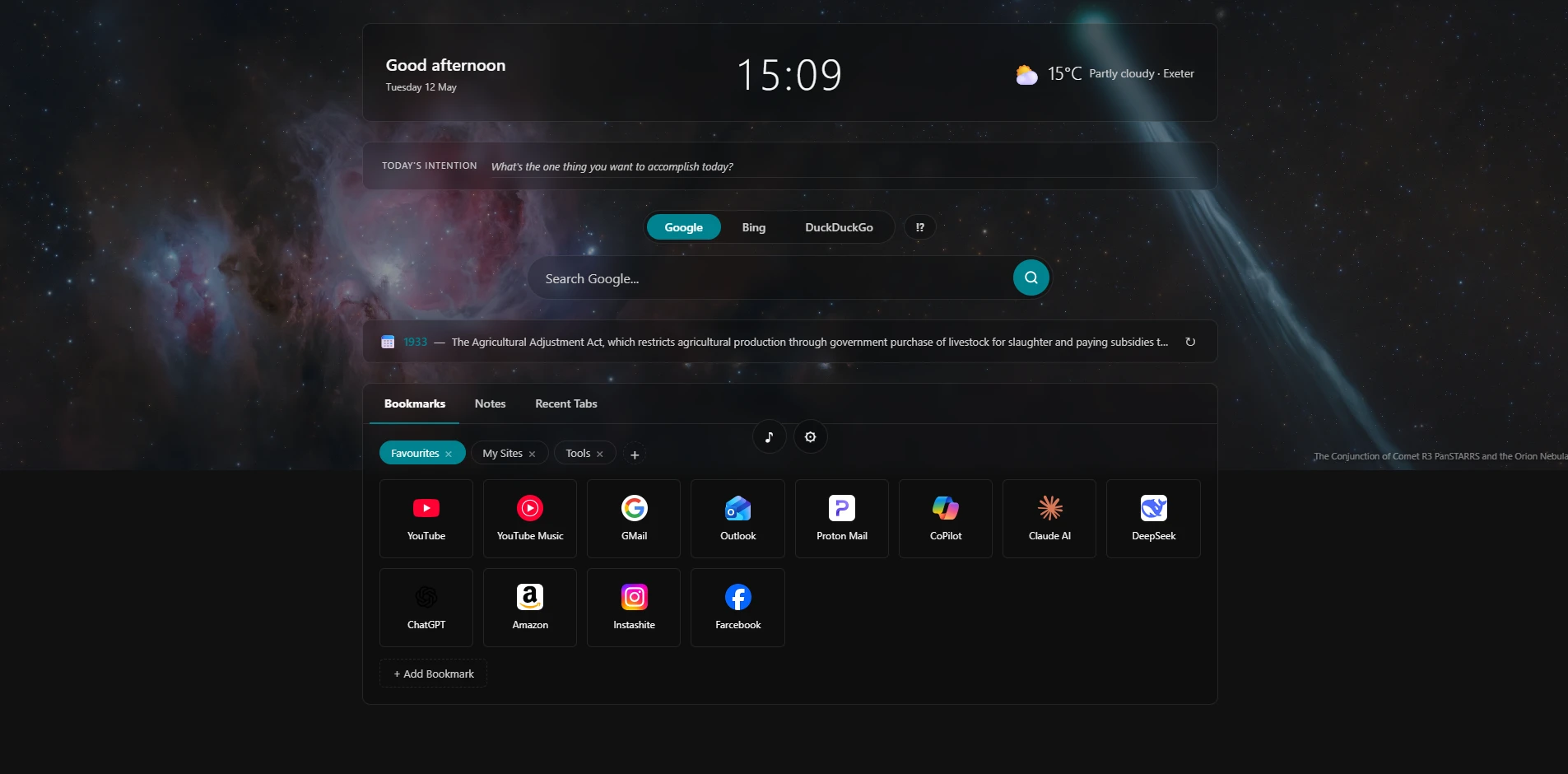 The layout is built around three zones:
- Header – a clock, a time-of-day greeting, and a live weather widget
- Middle band – a daily intention input, a multi-engine search bar with bang shortcuts, and a “this day in history” strip
- Content panel – tabbed area with Bookmarks and Notes, plus a recently closed tabs list
Behind all of it, a high-resolution photograph fills the screen – either Bing’s photo of the day, NASA’s Astronomy Picture of the Day, a solid colour of your choice, or any custom image URL. A subtle dark overlay keeps everything readable regardless of the photo.
A small toolbar sits at the bottom of the screen with an ambient sound player and a link to the settings page.
Features at a Glance
Daily Intention
Just below the header is a single text field: What’s the one thing you want to accomplish today? Whatever you type is saved instantly and persists across new tabs for the rest of the day. At midnight it clears automatically, ready for a fresh start tomorrow. It’s a small nudge toward intentional focus rather than reflexive browsing.
Multi-Engine Search with Bang Shortcuts
Three search engines sit side by side as tabs: Google, Bing, and DuckDuckGo. Click one to switch – the placeholder text updates and your search goes to the right place. If you type a bare domain like github.com, it navigates directly instead of searching.
All three engines also support bang shortcuts – type !bang query or query !bang to jump straight to another site regardless of which engine is selected. For example:
!yt lo-fi music– searches YouTube directly!gh react hooks– searches GitHub!mdn flexbox– searches MDNdark souls !r– searches Reddit
A !? help button next to the engine tabs opens a reference panel listing all available bangs grouped by category: Search, Video, Social, Shopping, Developer, Knowledge, AI, Google services, and Music. The list includes standard shortcuts like !w (Wikipedia) and !a (Amazon) alongside less common ones like !perp (Perplexity), !wa (Wolfram Alpha), !wb (Wayback Machine), !crates (crates.io), and !pypi.
This Day in History
A strip between the search bar and the content panel shows a randomly selected historical event from today’s date, pulled from the Wikipedia “On This Day” feed. A shuffle button (↻) cycles through other events from the same date. Results are cached for the day so the API is only called once per day no matter how many tabs you open.
Bookmarks with Groups, Edit, and Drag-to-Reorder
The bookmarks panel is where most of the detail work lives. You can:
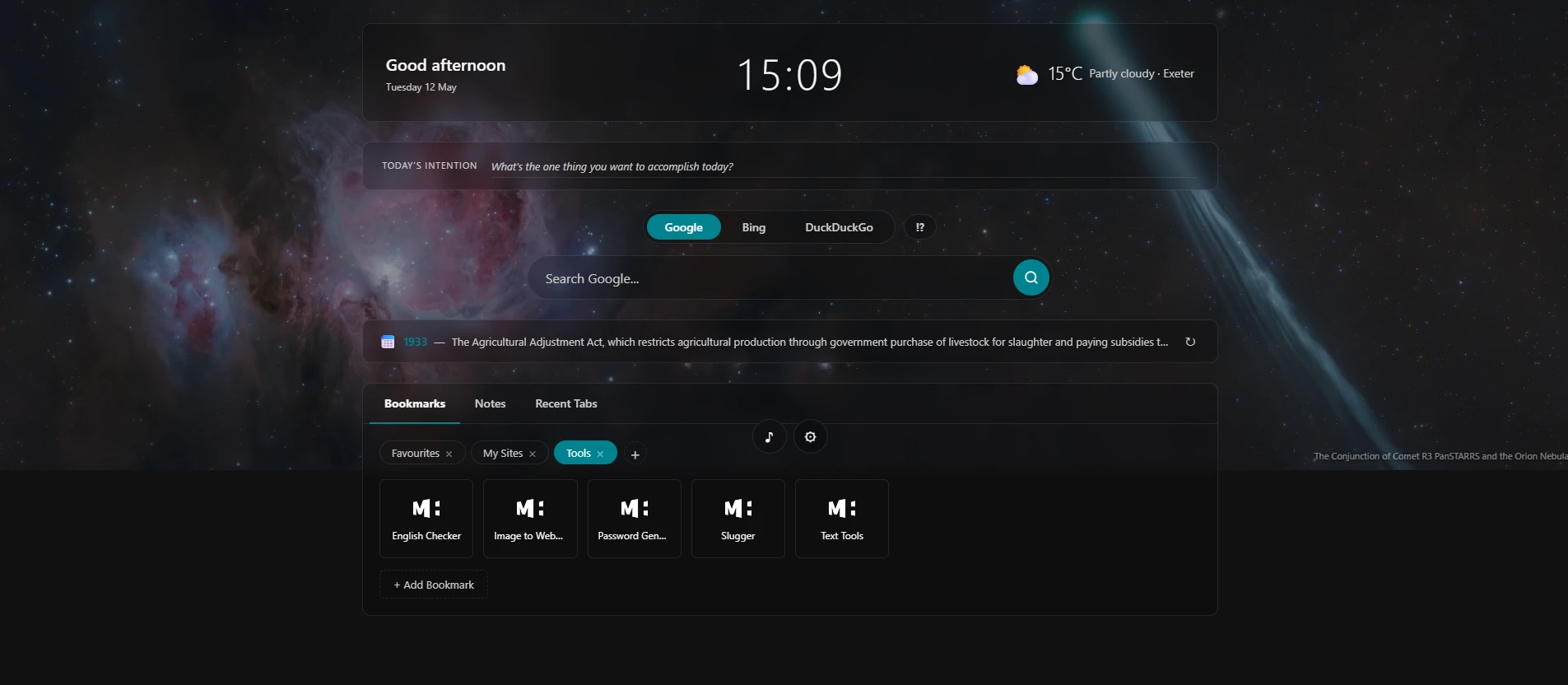
- Create named groups (Work, Reading, Shopping, etc.) and switch between them as sub-tabs
- Add bookmarks with a URL and optional title – if you leave the title blank it pulls the domain name automatically
- Each bookmark shows its favicon so you can scan visually rather than reading every label
- Hover a bookmark to reveal an edit button (top-left) and a delete button (top-right)
- Drag and drop to reorder within a group – a blue insertion indicator shows exactly where the bookmark will land
- All bookmarks open in a new tab, so you never lose the dashboard
Everything is saved to Chrome’s built-in storage and syncs across devices if you use Chrome Sync.
Notes – Quick Capture from Anywhere
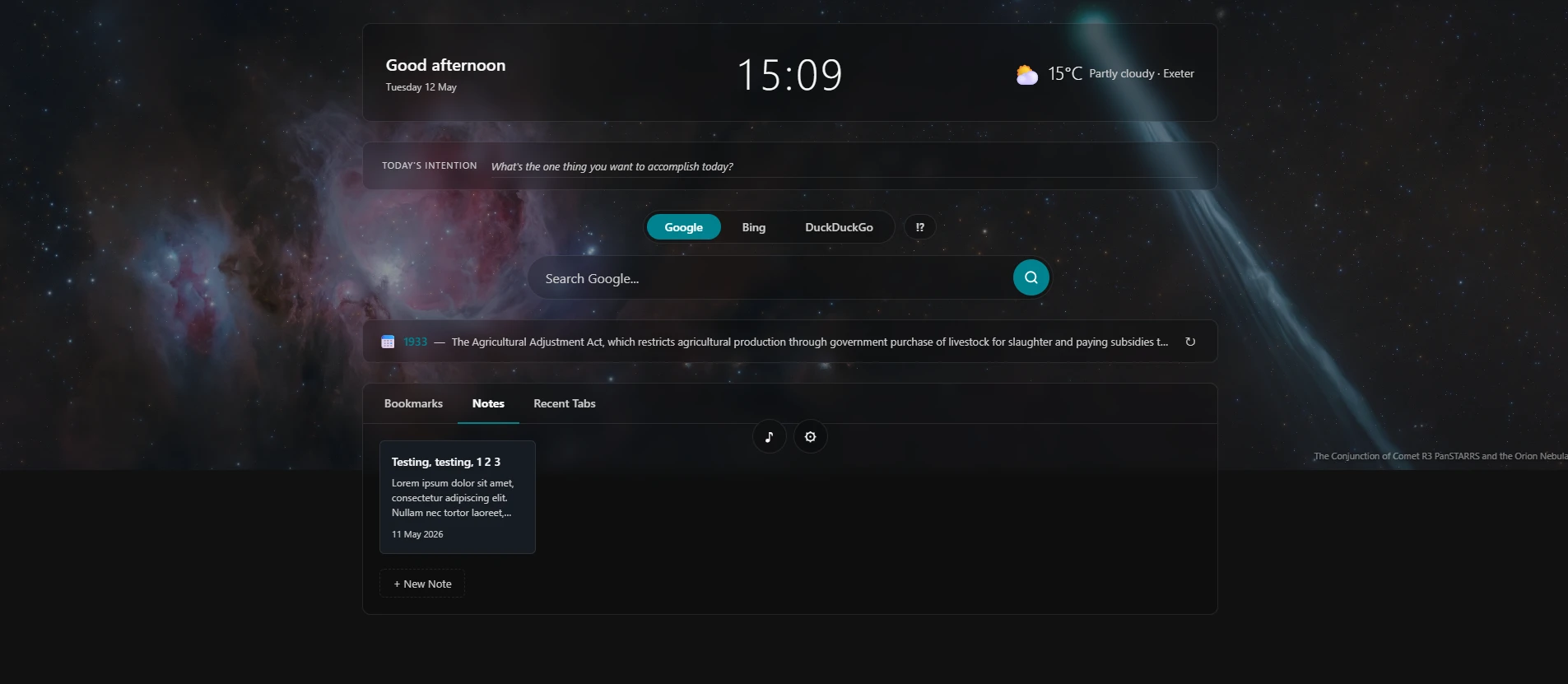
The Notes tab gives you a card-based view of all your notes, sorted by most recently edited. Click any card to open it in a full editor – title at the top, free-text body below, with Ctrl+S to save without reaching for the mouse.
The real convenience is the extension popup. Click the My Chrome Home icon in the toolbar – from any page, not just the new tab – and a compact note panel slides open. Type your thought, hit Save, and it appears on the dashboard the next time you open a tab. No switching context, no losing your place.
Weather – Automatic, No API Key
On first load, Chrome shows its standard location permission prompt. Once granted:
- The extension gets your latitude and longitude via the browser’s built-in geolocation API
- It fetches current conditions from Open-Meteo – a fully free, open-source weather service with no key required
- It reverse-geocodes your coordinates to a city name via OpenStreetMap’s Nominatim – also free, no account needed
- The result is cached for ten minutes, so opening multiple tabs doesn’t hammer any API
The display shows a weather emoji, temperature in Celsius, a short description, and your city name. Something like: 🌧 14°C Rain · Manchester.
Wallpaper – Four Sources
The settings page lets you choose where the background image comes from:
- Bing Photo of the Day – a new landscape, wildlife, or architecture photograph every morning at full 1920×1080 resolution, no API key required
- NASA Astronomy Picture of the Day – stunning space imagery from NASA’s APOD feed. Works with NASA’s free API key (or the built-in
DEMO_KEYfor occasional use). Because APOD sometimes features a video rather than a photograph, the extension automatically tries up to five consecutive days back to find a still image - Solid colour – pick any background colour for a minimal, distraction-free look
- Custom URL – point it at any HTTPS image of your choice
Whichever source you use, the image is cached by date so it loads instantly when you open subsequent tabs throughout the day.
Ambient Sound Player
A small music note button in the bottom toolbar opens a sound panel. Choose from six options – Rain, Ocean, Fireplace, Brown Noise, White Noise, and Pink Noise – adjust the volume, and hit Play. All audio is synthesised in real time using the browser’s Web Audio API; there are no external sound files to download or host. The rain and ocean modes include filtering and low-frequency modulation to make them feel more natural rather than like raw noise.
Recently Closed Tabs
The Recent Tabs panel lists recently closed tabs with their favicons and URLs, each opening in a new tab. Useful for that “wait, I just closed something I needed” moment.
Options Page
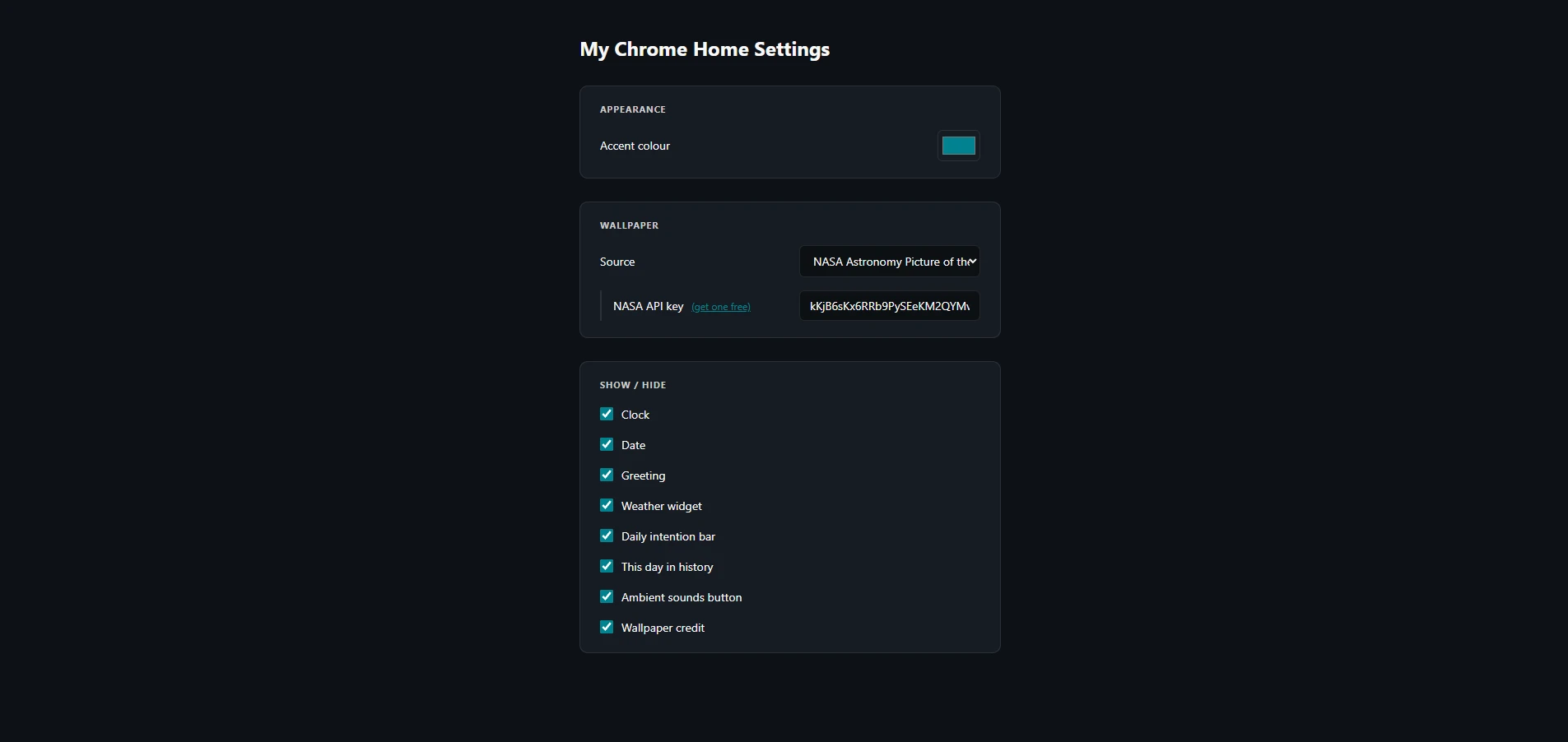
Clicking the settings button opens a dedicated options page where you can configure everything without touching code:
- Accent colour – a colour picker that updates the entire UI in real time: active tabs, the search button, bookmark hover states, bang labels, and more all follow the chosen colour
- Wallpaper source – choose between Bing, NASA (with optional API key field), solid colour, or custom URL
- Show / hide toggles – independently show or hide the clock, date, greeting, weather widget, daily intention bar, this day in history strip, ambient sounds button, and wallpaper credit. Useful for a cleaner look or for focusing on specific features
All settings save automatically on change with no Save button needed.
Under the Hood
A few technical decisions worth mentioning for anyone building something similar:
Manifest V3
The extension uses Chrome’s current Manifest V3 standard. This matters for longevity – Google is deprecating V2 extensions, so anything built now should target V3. It also means a stricter Content Security Policy: no eval(), no remote scripts, and all external data must be handled carefully before it touches the DOM.
No innerHTML with External Data
Everywhere external data (note content, tab titles, API responses, history events) appears in the page, it’s inserted via textContent rather than innerHTML. This prevents any possibility of injected HTML being parsed – a requirement Chrome Web Store reviewers check for explicitly.
Wallpaper URL Validation
Before any wallpaper URL is used in a CSS property, it’s parsed with the browser’s URL constructor, the protocol is verified to be https: or http:, and the result is passed through JSON.stringify() before being interpolated into url(...). This prevents CSS injection regardless of what an API response or user input contains.
Web Audio API for Ambient Sounds
Rather than bundling audio files, all six ambient sounds are synthesised at runtime using the Web Audio API. White, brown, and pink noise are generated by filling an audio buffer with filtered random values. Rain adds a bandpass filter centred around 700 Hz. Ocean uses a lowpass filter with a slow LFO modulating the gain to simulate wave rhythm. Fireplace uses filtered brown noise through a lowpass filter. The AudioContext is created on demand and closed when playback stops, keeping resource use minimal.
Minimal Permissions
The extension requests only what it uses:
storage– saving bookmarks, notes, intention, settings, and cached API responsessessions– reading recently closed tabs
There is no tabs permission, no history permission, no access to page content. The four external services (Open-Meteo, OpenStreetMap, Bing, NASA) are declared explicitly in host_permissions so Chrome knows exactly what the extension connects to.
Edge Compatibility
Because Edge is built on Chromium and supports Manifest V3 natively, the same extension package loads without any changes in Microsoft Edge via edge://extensions. The chrome.* API namespace works identically.
What’s Coming Next
- Google Calendar API integration – show today’s events in the header or a side panel; requires wiring up an OAuth flow
- Google Drive sync for notes – the note storage format is already compatible, it’s a matter of the OAuth flow
- Google Tasks integration – a collapsible panel with headlines from a user-defined feed URL
- Cross device syncing
Final Thoughts
The default new tab page is a missed opportunity. You open it dozens of times a day – it’s one of the most-viewed surfaces on your computer. A little investment in making it genuinely useful pays back quickly.
What I found most interesting building this was how much is possible within Chrome’s extension permissions without touching anything sensitive. No access to your browsing history, no reading page content, no phoning home – just the browser’s own APIs for the things you’d expect, and a handful of free public services for the rest. The ambient sound synthesiser being entirely in-browser is a good example: there’s no reason to serve audio files when the Web Audio API can generate convincing rain and ocean sounds from scratch in a few dozen lines of JavaScript.
If you build on this or have ideas for what should be added, I’d love to hear them in the comments.
Privacy Policy – My Chrome Home
Last updated: 12 May 2026
My Chrome Home is a Chrome browser extension that replaces the new tab page.
This policy explains what data the extension uses and how.
Data the extension stores on your device
The following data is saved locally in your browser using Chrome’s built-in storage APIs and never leaves your device (except where noted under Sync below):
- Bookmarks and bookmark groups you create
- Notes you write
- Your daily intention
- Extension settings (accent colour, wallpaper source, show/hide preferences)
- Temporary caches of weather, wallpaper, and history API responses
Location
If you grant location permission, your approximate latitude and longitude are sent directly from your browser to two free, open-source services to display weather information:
- Open-Meteo (api.open-meteo.com) – weather conditions and temperature
- OpenStreetMap Nominatim (nominatim.openstreetmap.org) – city name
Your coordinates are not stored by the extension beyond a 10-minute weather cache, and are never sent to the extension developer. You can deny location permission at any time; the rest of the extension works without it.
Third-party services
Depending on your settings, the extension makes direct requests from your browser to the following services. No personal data is included in these requests beyond what is technically required (e.g. your IP address, as with any internet request):
- Bing (www.bing.com) – daily wallpaper image, if selected
- NASA (api.nasa.gov) – Astronomy Picture of the Day, if selected
- Wikipedia (en.wikipedia.org) – “This day in history” events
Chrome Sync
Your extension settings and daily intention are stored using chrome.storage.sync. If you are signed into Chrome with sync enabled, Google will sync this data across your devices in accordance with Google’s own privacy policy.
Data the developer DOES NOT collect
The extension has no backend server. The developer (Mark Hall) receives no data of any kind – no analytics, no crash reports, no usage statistics, no personal information.
Data Deletion
All locally stored data (bookmarks, notes, settings, caches) can be deleted at any time by removing the extension from Chrome, which wipes all associated storage.
Open Source
Github repo at https://github.com/obviousdisaster/my-chrome-home
Contact
If you have questions about this policy, contact: mark@markhall.dev