
Given that you’ve been using YouTube for a while now, there is a high chance that the number of channels subscribed to by you has become quite unmanageable. Well, the problem is solved right in YouTube itself without having to use any other window or software.
Sound Familiar?
You open YouTube. You are in the mood for some videos from the cooking channel you subscribe to. You open the subscriptions tab to the left. Then you scroll, and scroll, and scroll. Through gaming channels, news channels, music channels, and even those three channels you once subscribed to without remembering why. Finally, you find what you need, or abandon the search, or simply open the homepage hoping for YouTube’s magic algorithm to do its work.
The actual issue here: YouTube presents you with one massive list that can’t be grouped into any categories, filtered by the type of content, or even split by frequency of use. Once you reach thirty subscriptions, you are not working with the subscription list anymore – you are fighting with it.
It is not a unique case. Plenty of users subscribe to totally unrelated channels – sport and technology, cooking and politics, music and science. Channels they watch on a daily basis appear among the ones that appear once in a blue mo
YouTube has struggled with its subscription system for quite some time now. This extension is their folder system that they never implemented.
Functionality of the Extension
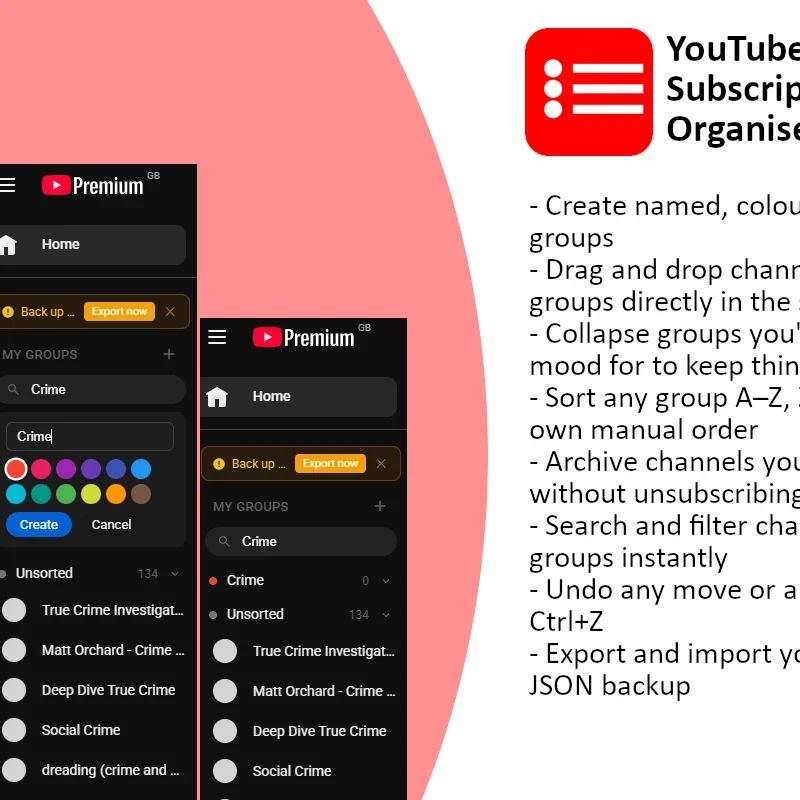
The YouTube Subscription Organiser is an extension for browsers that works as a replacement for the default subscription manager on the sidebar of YouTube. You can group the channels, name the groups, and assign a colour to each group as per your convenience. This is what the extension basically does.
The extension does not open up an application window separately. Neither does it make you leave YouTube. The folders exist exactly where you always search for your subscriptions – the sidebar – and they function precisely the way you do everything else. If you click on any channel, you will land on the page.
Before
After
How It Works
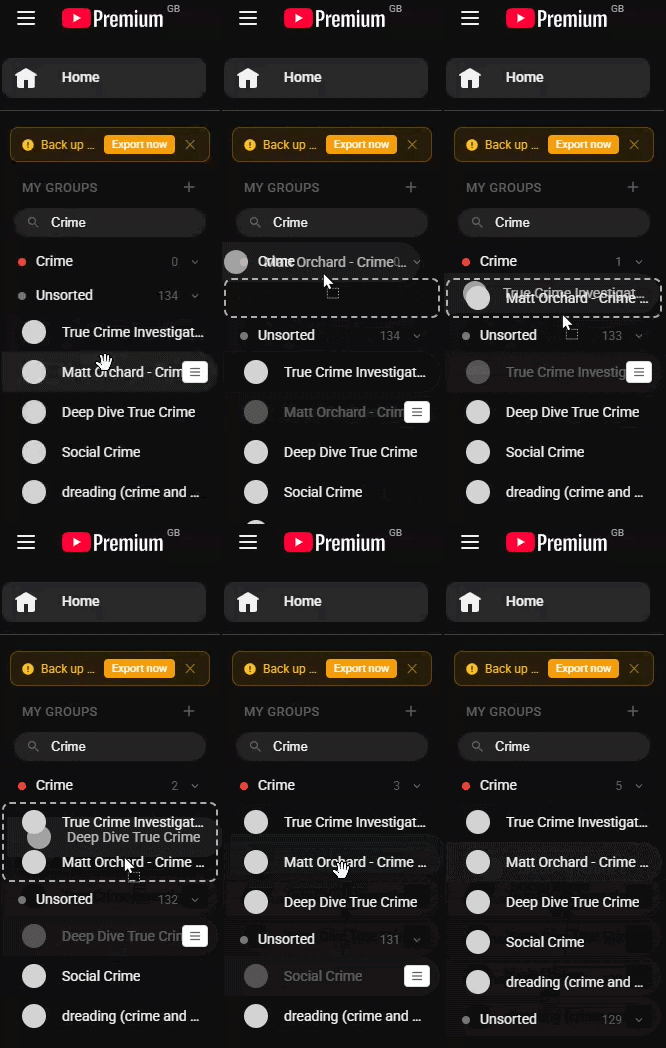 Once you install the extension and log on to YouTube, it will read your current subscription list in the sidebar and put all your channels in the Unsorted category. It’s all up to you from there. You make a new folder such as “Tech” and select its colour, and start dragging channels inside. You can make as many folders as you wish, give them whatever names you choose, and rearrange them anytime.
All actions take place in the sidebar itself. There is no dedicated management interface, no account creation, and no data transfer whatsoever. Your folders are stored in your browser, and if you use Chrome or Edge, are synced seamlessly on any other device that you use the extension on.
For example, assume you subscribe to 80 channels in five different categories. Rather than have a long and cluttered list, you create five different folders named “Tech & Science”, “Gaming”, “Cooking”, “Music” and “News”. The folders will remain collapsed on the sidebar unless needed. For instance, on a Monday morning, you open the News folder. On a Friday evening, you open the Gaming folder. Everything else is out of sight until you need them.
Every Feature, Explained Simply
- Custom Groups – Make as many groups as you wish. Assign names and select one of the twelve colour choices for distinction. Channels in a group will display the total number of channels included.
- Drag and Drop – Transfer channels across different groups using a simple drag and drop approach. The group will be highlighted when dragging the channel over it so you always know where you’re going to put it. Drag and let go!
- Move From Pop-up Menu – Instead of dragging, hover any channel and use the small menu that appears on top. A pop-up will open which lists all your available groups. You’ll only need to pick the group from the list to move the channel over.
- Sorting Within Groups – Sort individual groups as desired. Use the sorting tool at the beginning of each group to switch between manual sort, alphabetically ascending order and alphabetically descending order. Helpful for those who prefer a specific sorting technique in certain groups.
- Archived Channels – There are some channels that you have subscribed to but do not often watch. Rather than polluting a group with these channels, simply archive them. Archiving causes the channels to be hidden from your list and placed in an “archived” section collapsed below everything else – easily reversible without the need to unsubscribe.
- Search/Filter – A search bar near the top of the sidebar lets you filter your channels in real-time as you type. Search results will come up in all groups at once. If you have too many channels to remember which group a particular channel is located in, this feature helps tremendously.
- Undo With Ctrl+Z – Dropped a channel into the wrong group? Hit Ctrl+Z (⌘Z on Mac) to undo your last action. This extension keeps track of your last twenty actions in a single session, eliminating any accidental placements.
- Synced Across Devices – Channels and Groups sync automatically between all devices on which you are signed into Chrome/Edge. Set up your groups once on your laptop, and when you sit down to use your desktop or work computer, they’ll be ready and waiting for you!
- Channel Highlight – As soon as you visit the page of any channel, it will automatically highlight itself in the sidebar with a red dot and scroll into view so that you are aware of its position within your organization. Groups remain collapsed – the extension will always respect whatever arrangement you make.
- Backup Prompt – All your groups are saved by the extension in your browser. So in case something happens to your browser or you get a new one, a backup could come in very handy for you. Once every four weeks, there comes a prompt to download a JSON file containing all your groups.
Who Is This For?
You do not have to be a power user or highly tech-savvy in order to use the extension effectively. If you have more than thirty subscriptions on YouTube and have ever found yourself having to scroll through unwanted channels in order to find the wanted channel, then this extension will make your daily life significantly easier.
That being said, it is the individuals who subscribe to channels from vastly varied genres who would find themselves getting the greatest benefit from using this extension. In the case where every single YouTube channel you follow falls under one genre, a simple list may suffice. However, for everyone else whose interests vary widely, there is bound to be some friction when using YouTube.
Scenario: Sarah subscribes to 120 channels. She consumes tech review videos while having lunch, cooks by watching content on weekends, and keeps track of two-three news channels in the mornings. With the linear channel list, she needs to spend some time finding the desired channel before starting a video each time. Having an organiser means four categories for her – Daily Watch, Tech, Cooking, and News; and all those channels she consumes every morning can be found right there in front of her in the category “Daily Watch”.
Your Data, Your Device
All your data are stored locally in your browser using browser’s own storage. Not a single piece of information goes to the third party server. You don’t need to register anywhere. There are no fees to pay; you won’t have to subscribe.
Sync function uses Google account that you’ve created when signed into Chrome or Edge. Your group data move through Google infrastructure the same way as your bookmarks.
The export feature lets you download a plain JSON file of all your groups and assignments. This file is human-readable, can be backed up anywhere you like, and can be imported back into the extension if you ever reset your browser or switch computers. Your organisation is always yours to keep.
Getting Started
It takes one minute for installation. Since the extension is not automatically installed from the browser’s store, there are some additional steps to follow, although it is done only once.
At your first visit to YouTube after downloading, all your subscriptions will be listed in the Unsorted category at the bottom of the sidebar. Then, depending on your preferences, you can start sorting the videos into the groups as soon as you want to.
There’s absolutely no right or wrong way to categorise videos. You can group them according to their subject matter, watching frequency (for instance, “every day,” “once a week,” “occasionally,” and so forth), your mood, or some other aspect. This extension imposes no particular order. All it allows you to do is organise videos however you want.
Free, no sign-up required. Operates inside YouTube using Chrome and Edge browsers only.
Privacy Policy
What data the extension stores: Your group names, colour choices, and which channels you’ve assigned to which groups. Nothing else.
Where it’s stored: In your browser using Chrome’s built-in storage. If you’re signed into Chrome/Edge, Google syncs this to your other devices the same way it syncs your bookmarks – the extension itself has no access to that process and receives no copy of it.
What the extension does NOT do: It does not collect, transmit, or share any personal data. It does not track your browsing, viewing history, or watch habits. It does not communicate with any external server.